

A practical guide to clearer mixes, controlled loudness and keeping the energy that made your track work in the first place.
By Mark Hampson · J26 Productions

Keep the focus on the music. Studio illustration created with AI, not a photograph of the J26 studio.
You’ve finished the arrangement. The bassline moves, the drums hit, and the chorus finally delivers. Then you start mastering.
A few plug-ins later, everything is louder, but the kick feels smaller, the vocal sounds strained, and the track somehow has less impact.
Sound familiar?
Mastering isn’t simply about making music louder. It’s about preparing a finished mix for release while preserving its character. That means balancing tone, controlling dynamics, checking technical requirements and knowing when to leave things alone.
Here’s a practical approach, whether you work in Cubase, Ableton Live, Logic Pro or another DAW.
1. Start with a mix that already works
Before adding mastering processors, listen to the entire track.
Can you hear the vocal clearly? Do the kick and bass work together? Does the chorus arrive with the energy you intended? Are there clicks, awkward edits or distortion?
If you still have the individual tracks, fix those problems there. Turning up the entire mix won’t bring forward a buried vocal without also raising everything around it.
Save a separate mastering version and leave some headroom. Peaks around -6 dBFS can be a convenient starting point, but that number isn’t a requirement. What matters is a clean signal with room for processing, not hitting an arbitrary meter reading. Lowering the output won’t undo distortion already printed into the audio. Read iZotope’s headroom guide.
2. Choose a reference—and turn it down
Pick one or two professionally released tracks with a similar musical direction. Listen for their overall balance, low-end weight, vocal presence and sense of space.
A mastered reference will often be louder than your unmastered mix. Reduce its playback level so the comparison is fair. Otherwise, it’s easy to mistake “louder” for “better” and start making unnecessary changes. Read iZotope’s reference-track guidance.
Make sure the reference bypasses your mastering processing. You want to compare against it, not accidentally master it again.
The aim isn’t to copy another record. It’s to give your ears a useful point of comparison.
3. Balance the sections without flattening the arrangement
Consistency doesn’t mean every section should have identical loudness.
A breakdown can be quieter than a chorus. A stripped-back verse should feel different from a full drop. Those contrasts help create momentum.
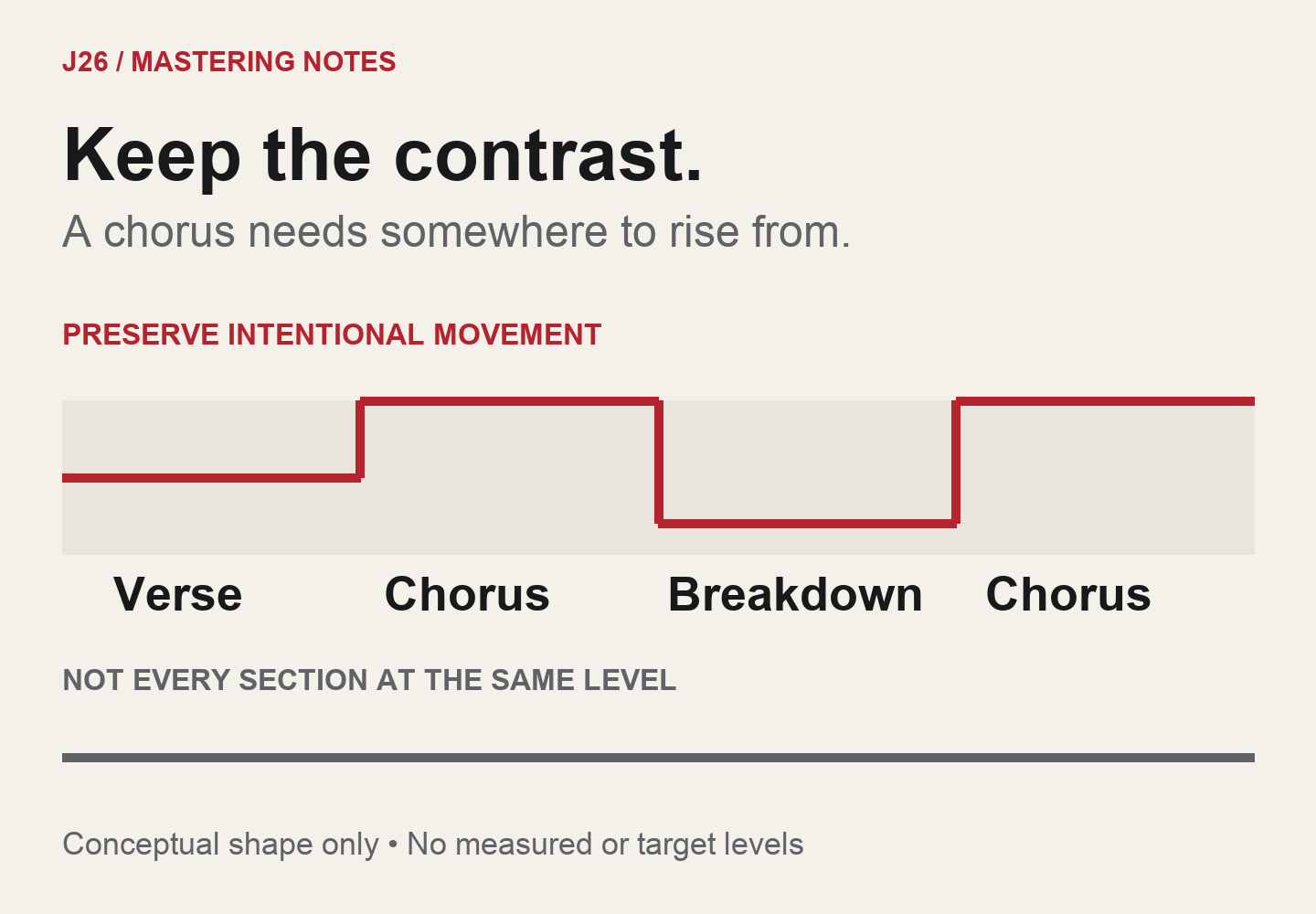
Illustrative only - not measured audio or target loudness values. The shape of the arrangement is a musical decision.
But if a section genuinely disappears, try a small volume adjustment before reaching for heavier compression. Automation lets you lift or reduce a specific passage without changing the whole track.
For example, a quiet verse might benefit from a gentle 1 dB lift. Listen through the transition and adjust the amount and timing until it feels natural.
Place these corrective level changes before the final loudness processors, then recheck how those processors respond.
And remember: if a chorus lacks drums, bass or musical energy, a louder master won’t supply the missing arrangement.
4. Use EQ and compression for a reason
Ask what needs changing before choosing a processor.
If the whole mix sounds slightly muddy or overly bright, a small EQ adjustment may help. If one instrument causes the problem, returning to the mix is usually more precise.
Compression is optional. A mix that already feels controlled and cohesive may not need another compressor across it.
If you do use one, begin gently. A low ratio, such as 1.5:1 or 2:1, and modest gain reduction can be useful starting points. Attack and release settings need to suit the material: listen to whether the drums retain their initial impact and whether the groove breathes naturally. Read iZotope’s mastering-compression guide.
Compare processed and unprocessed versions at similar loudness. If the improvement disappears when you match their levels, reconsider the processing.
A longer plug-in chain isn’t automatically a better master.
5. Bring up the level without pushing the life out
A limiter controls peaks, allowing you to raise the overall level. It can also take away the impact you’re trying to preserve.
Increase the level gradually and listen beyond the loudest few seconds.
Warning signs include:
- A kick that loses its initial snap.
- Bass that makes the whole track dip unnaturally.
- Cymbals becoming splashy or gritty.
- Vocals sounding pinched or distorted.
- A chorus that feels smaller as the meter climbs.
If these appear, back off. Check whether excessive low end or an isolated peak is driving the limiter too hard.
For a straightforward starting chain, try corrective EQ if needed, optional compression, a true-peak limiter and a meter. More complex processing can help when there’s a clear reason for it, but it isn’t a requirement.
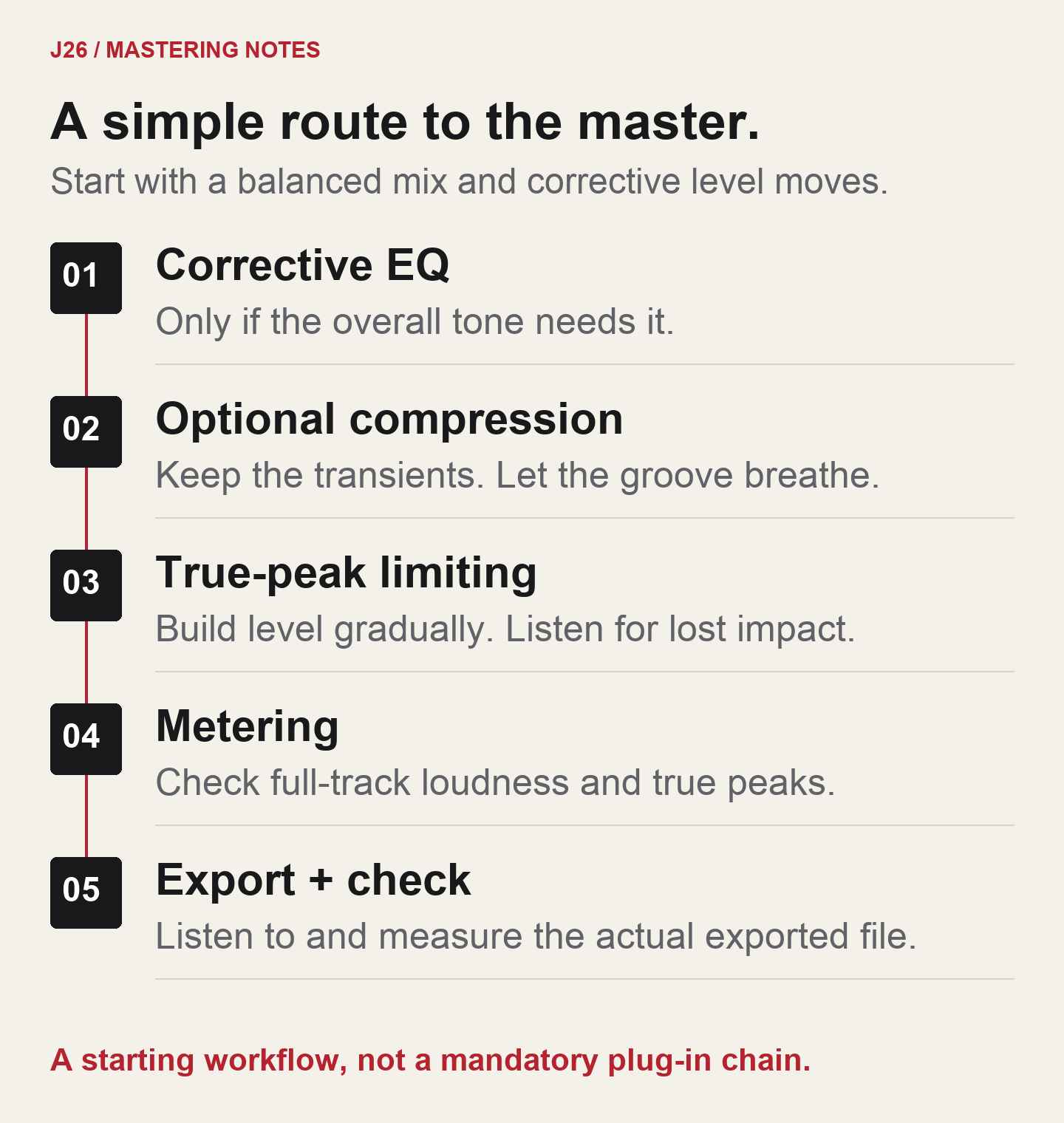
A starting workflow, not a mandatory plug-in recipe. Skip processing that doesn’t improve the music, and level-match comparisons.
6. Understand loudness numbers without chasing them
Two measurements are particularly useful:
Integrated LUFS describes loudness across the whole track. True peak, measured in dBTP, estimates peaks in the reconstructed waveform, including those between digital samples.
Neither tells you whether the music is exciting.
Spotify’s current mastering guidance recommends -14 LUFS integrated with true peaks below -1 dBTP. For masters louder than -14 LUFS, it recommends true peaks below -2 dBTP to reduce the risk of encoding distortion. These are Spotify specific recommendations, not a universal mastering rule. Its playback normalisation also depends on settings and playback environment. Read Spotify’s official loudness guidance.
Choose the sound and dynamics that suit the music, while meeting the requirements of your intended release destination.
Turning a crushed master down won’t bring its punch back.
When normalisation turns a heavily limited master down, it doesn’t restore the punch you removed. Judge the result at matched playback levels - not by the size of its waveform.
7. Check the exported file, not just the session
Once you’re happy, export a high-quality stereo master in the format your label or distributor requests.
A 24-bit WAV at the project’s native sample rate is a common working choice. Don’t convert unnecessarily or assume a higher sample-rate number will improve the source. Check the actual delivery specification, Spotify, for example, asks for the highest-quality native stereo master. Read Spotify’s audio-delivery requirements.
Include the complete ending and any intentional reverb or delay tail. Avoid extra export normalisation that would change levels you’ve already set deliberately.
Then listen to the actual file from beginning to end.
Check it on familiar headphones and speakers, at a comfortable level, and briefly in mono. Use a phone speaker to check the vocal and main musical balance - not to judge deep bass.
Measure the exported file’s loudness and true peak too. An export setting or conversion can change the result.
The J26 final check
Before calling the master finished, ask:
- Have I fixed obvious mix problems?
- Does the chorus still feel bigger than the breakdown?
- Do the kick and bass retain their definition?
- Does processing improve the sound when level-matched?
- Have I checked the full track, not just the drop?
- Does the exported file meet the delivery requirements?
- Have I listened again with fresh ears?
A mastering engineer can also provide valuable independent judgement, especially when you’ve spent weeks inside the same production.
The aim isn’t the biggest waveform. It’s a track that feels finished, holds together on different systems and still makes you want to turn it up.
Keep the punch. Keep the movement. Let the music do the work.
From the J26 Shop
Make the track. Keep your character.
Exploring Cubase for your own productions? Find Cubase Artist 15 in the J26 Shop, then compare editions and requirements before choosing. You don’t need to buy a new DAW or extra plug-ins to use the principles in this guide.
Explore Cubase in the J26 Shop →
Compare Cubase editions at Steinberg · View Cubase Artist 15 at Plugin Boutique (affiliate link)
Ad / affiliate disclosure: J26 may receive a commission if you purchase through the retailer link above or affiliate links in the shop, at no extra cost to you. Editorial recommendations remain independent. The help references in this article are for Cubase Pro 15, the linked shop product is Cubase Artist 15, not Pro. Check the edition’s included tools and current retailer details before purchase.